Turn your lesson takes into a complete educational edit.
Record the definition, the steps, the example and the conclusion as separate short-form takes. ReadyForm turns them into one connected explanation: scenes in order, captions with your terminology, pacing a viewer can follow, screenshots and B-roll where they help. You check what the viewer will learn.
ReadyForm organises the explanation. Only the expert can confirm the lesson is correct: it does not fact-check, and it does not build courses.
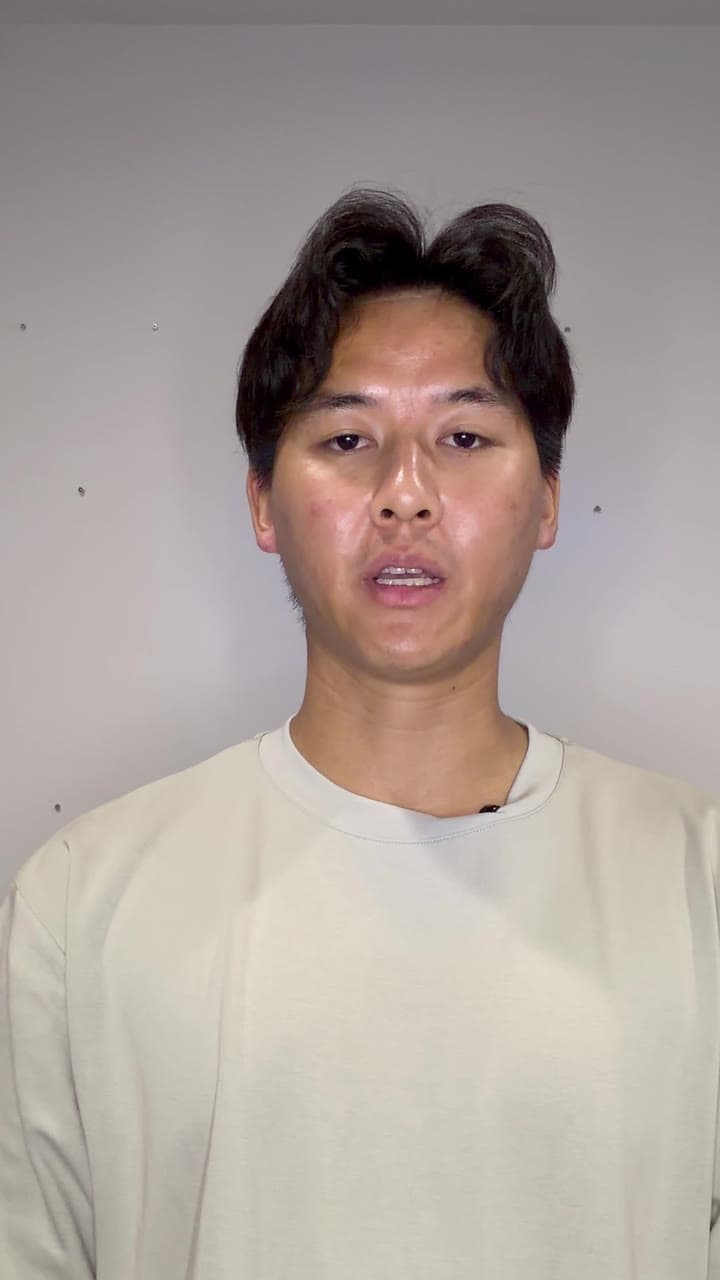
What is an educational video?
An educational video helps a viewer understand a concept, process, skill or practical next step. An explainer makes a topic, product or problem easier to understand through a focused, structured explanation.
The content type defines what the viewer should understand; the recording format defines how the expert delivers it. ReadyForm takes the separate recordings for one lesson and turns them into one complete edit, and shows the result scene by scene so the expert can check the order, the terms and the examples.
It does not verify whether the explanation is correct, complete or right for the audience. That stays with the educator.
Knowing the subject does not create a clean timeline.
Three versions of the opening. A definition that came out too technical. A restarted step. An example that needs a correction. An important exception. An unnecessary detour. Two summaries. Terminology the captions have to get exactly right. Screenshots recorded separately.
The correct information is already there. The editing work is connecting it in an order the viewer can follow, without removing the context they need. ReadyForm does that, and shows you what it kept and what it cut.
A cleaner edit is not automatically a better lesson. Look at what was included and what was removed.
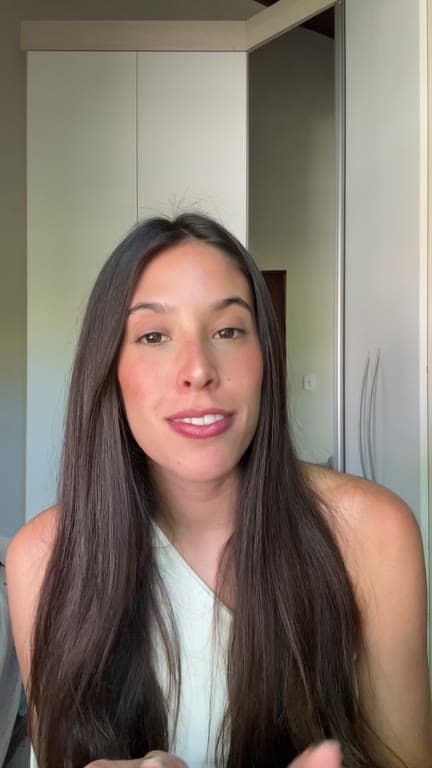
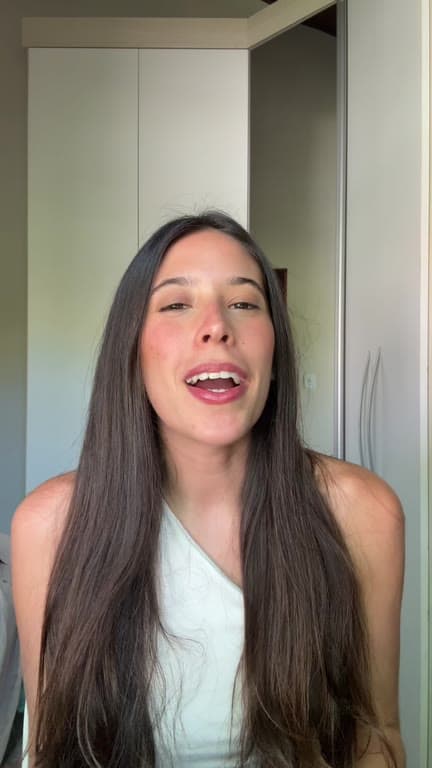
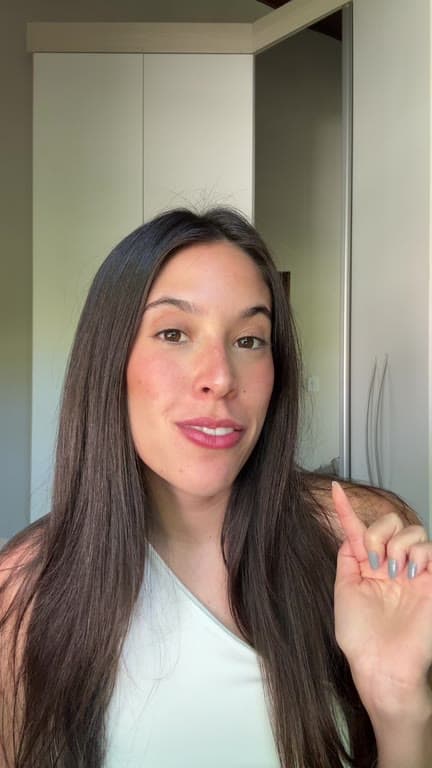
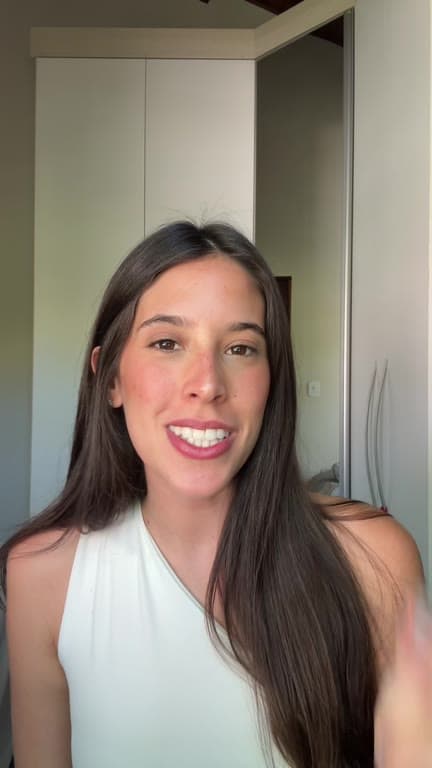
Record in parts. Get the whole learning sequence back.
One learning objective per video. One short video does not need to contain an entire course.
01
Break the explanation into parts
Split the explanation the way you would teach it: the question or problem, the definition, the context, the first step, the next one, an example, the mistake people make, the exception and a summary. Record each part on its own, and record it again wherever the wording could be sharper.
02
Upload the lesson takes
All the recordings for that one lesson go into a single project, together with any screenshots or slides you want on screen. Pick a brand kit so the captions and colours match the rest of the course. Nothing has to be trimmed or put in order first.
03
ReadyForm makes the edit
Every take is transcribed, the clearest version of each part is chosen, and the restarts and the long pauses come out. Captions, pacing, supporting visuals, sound and colour go in. It is rendered as one connected explanation, running in the order a learner needs to hear it.
04
Check it from the learner's side, then post
Watch it as someone who does not know the subject yet: the order of the scenes, the take used in each one, the terminology in the captions, and whether every screenshot stays on screen long enough to read. Fix a word, swap a take, add a visual. Then download it in 9:16, 1:1 or 16:9.
Structures that fit one short lesson.
Pick one; record the parts.
Definition, example, application
What it is, what it looks like, how to use it.
Problem, explanation, solution
Why it happens, what is going on, what to do.
Step-by-step tutorial
One process, in order, with the screen if it helps.
Mistake, reason, correction
The common error, why it is one, the fix.
Framework, components, application
The model, its parts, where it applies.
Myth, clarification, evidence
The belief, the nuance, the support.
What the editor does with a lesson.
The editing priorities of an explanation, handled in one pass and yours to change.
Logical scene order
The parts connected in the sequence you recorded them for.
Complete explanations
Restarts and detours cut; the exception and the context kept.
Captions with your terminology
Word-timed captions. Definitions, names, numbers and terms are editable in the story view.
Readable pacing
Scene lengths and cut points that give a viewer time to follow.
Relevant visuals
Screenshots and B-roll on the lines that ask for them. Check each one for accuracy and the right to use it.
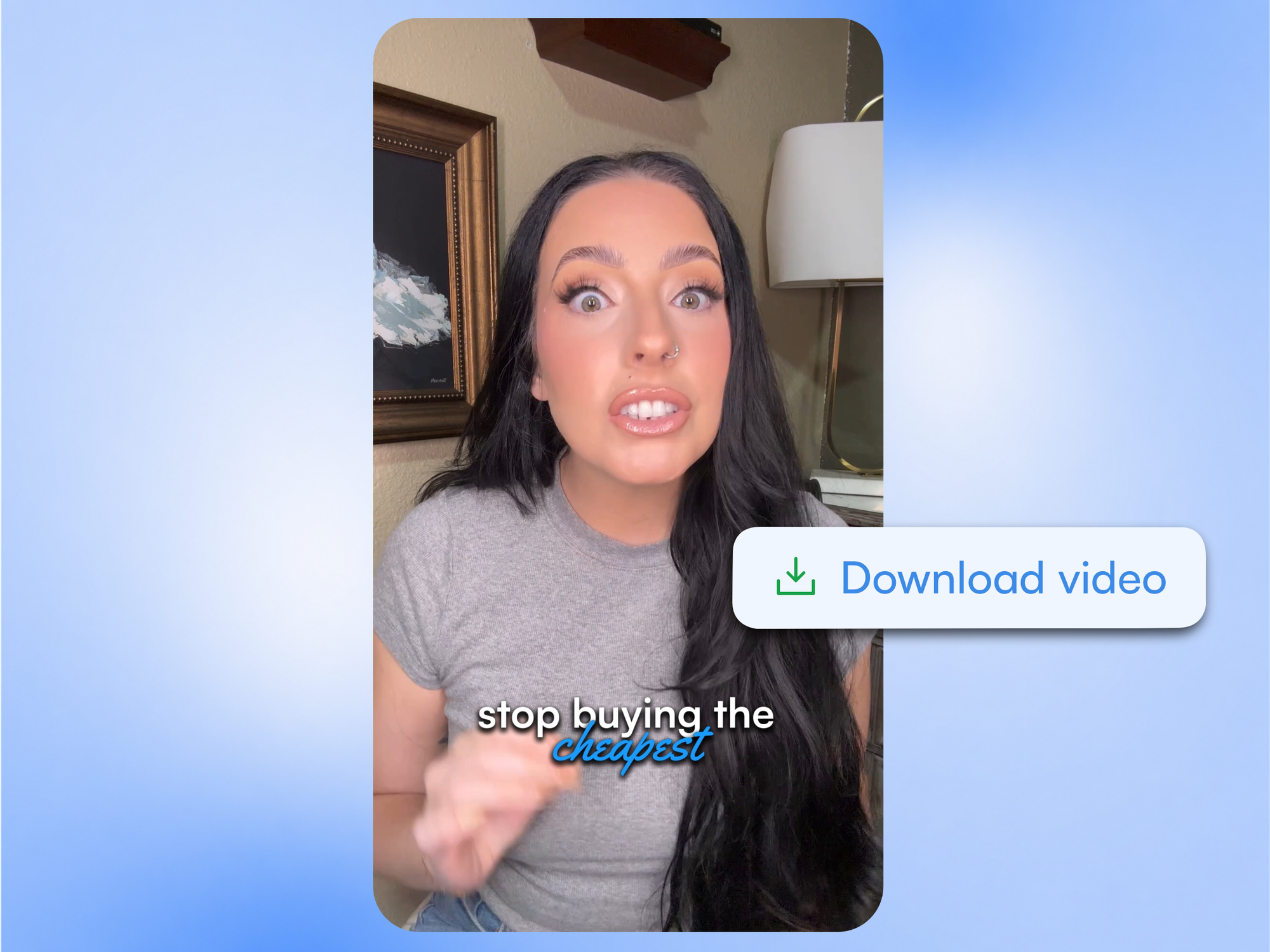
Know where ReadyForm fits in teaching.
ReadyForm is built for experts who record their own footage, one lesson in several takes, that needs scenes, captions and visuals, where terminology and examples deserve a look, meant for short-form or professional social channels. Educators, trainers, product experts, consultants, course creators and knowledge-led businesses.
ReadyForm is not a learning management system, a course-hosting platform, an AI tutor, a quiz generator, an automatic fact-checker, an instructional-design service or an animated-explainer studio. It does not promise learning outcomes, and it does not replace subject-matter or accessibility review.
Try it on your own footage for $0 today.
Every plan starts with 7 days free: 750 ReadyCredits, up to 3 standard videos, the complete editor, no watermark.
Start 7-day free trialQuestions before you upload?
What is educational video editing?
Turning recorded explanations, steps and examples into a structured video a viewer can follow: choosing takes, ordering scenes, cutting what does not help, adding captions and visuals, setting the pacing.
How does ReadyForm edit educational videos?
It transcribes the separate lesson takes, picks the cleanest version of each part, cuts the restarts, adds captions, zooms, B-roll, sound and colour, and renders one connected explanation, scene by scene.
Can I upload separate lesson sections?
Yes. Record the definition, the steps, the example and the summary as separate takes, plus alternatives where the wording matters.
Can ReadyForm edit tutorial videos?
Yes: recorded instructions, demonstrations and screenshots for one short tutorial.
Does ReadyForm add captions to a lesson?
Yes, word-timed and in your style. Check definitions, names, numbers and technical terms in the story view; edit a word and the caption follows.
Does ReadyForm check whether the explanation is correct?
No. It organises the edit. Facts, steps, sources and conclusions remain the expert's responsibility.
Does ReadyForm create animated explainers or complete courses?
No. It edits original recorded footage into short-form videos. No animation, no text-to-video, no course hosting or assessments.
Can I try educational video editing?
Yes. Every plan starts with 7 days free: 750 ReadyCredits for up to 3 standard videos. A payment method is required, $0 is charged today, and you can cancel anytime from your account.
Related: All use cases · Talking-head video editing · Thought leadership videos · YouTube Shorts editor
Upload the lesson takes. Get the explanation back.
Record the parts of one lesson and see the complete edit ReadyForm makes of them.